Chrome extension

A better way to explore Google Images

Better Google Images gives you a cleaner thumbnail grid, a bigger preview image with a full-size hover peek, and a full-screen image slideshow. Choose your columns, hide the clutter, and see more of every image.

Add to Chrome — It’s free
  • Larger previews
  • Full-screen slideshow
  • Hover peek
  • No data collection

Same Google Images,
just better.

Illustration of Google Images results for modern architecture, with a larger preview of a selected image.

01 See more, browse better

Thumbnail image grid

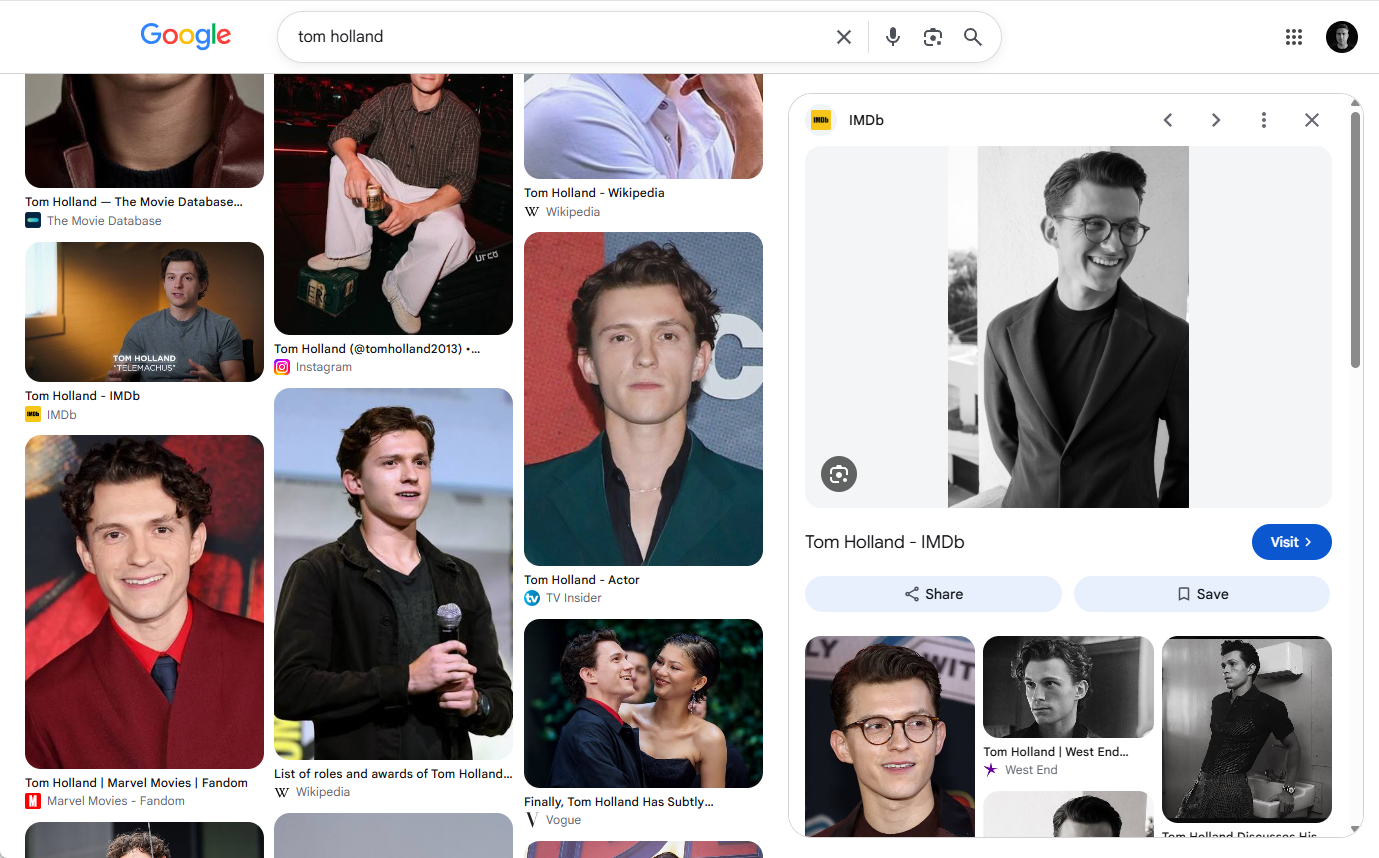
Bigger or smaller thumbnails, it's up to you. Choose your column count and hide the text clutter, with a quick hover when you need to see it.

  1. 1
    Hide the text clutter

    Switch to a thumbnail-only view, so titles and captions stay out of the way.

  2. 2
    Choose your column count

    Fewer columns make every thumbnail bigger. More columns fit more on screen.

  3. 3
    Hover for more

    Hover a thumbnail to see the full title and the rest of the details.

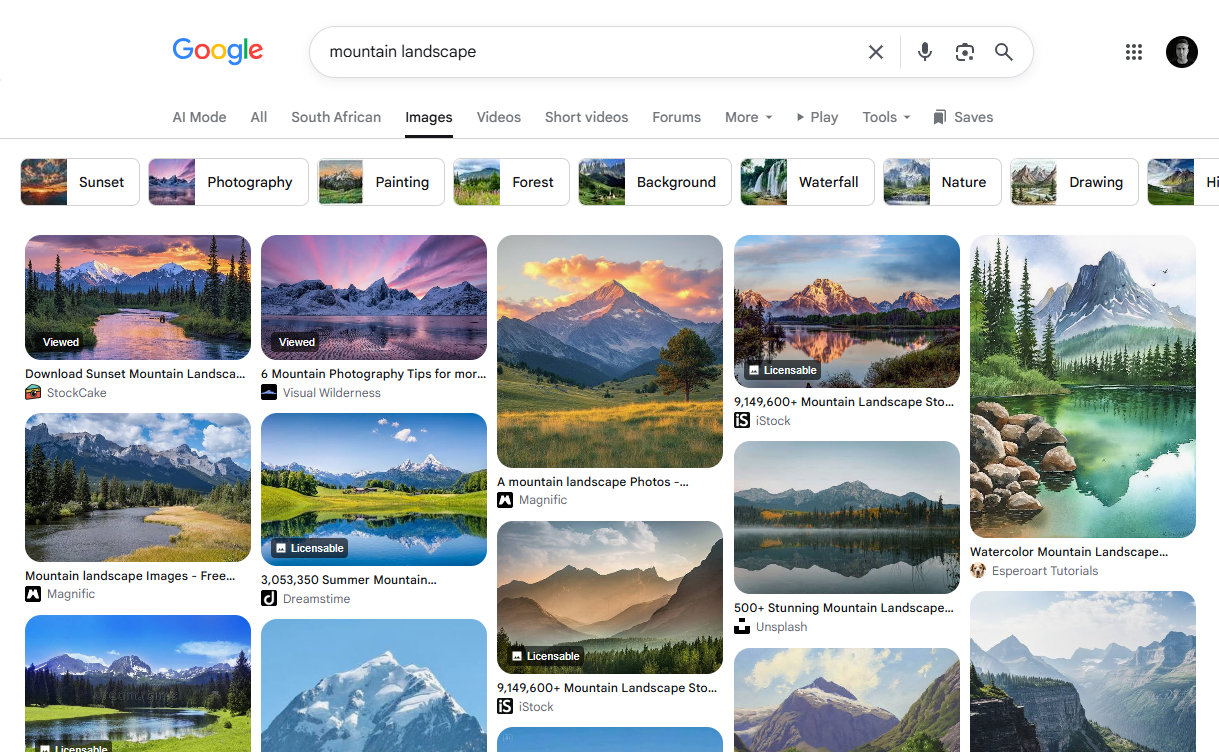
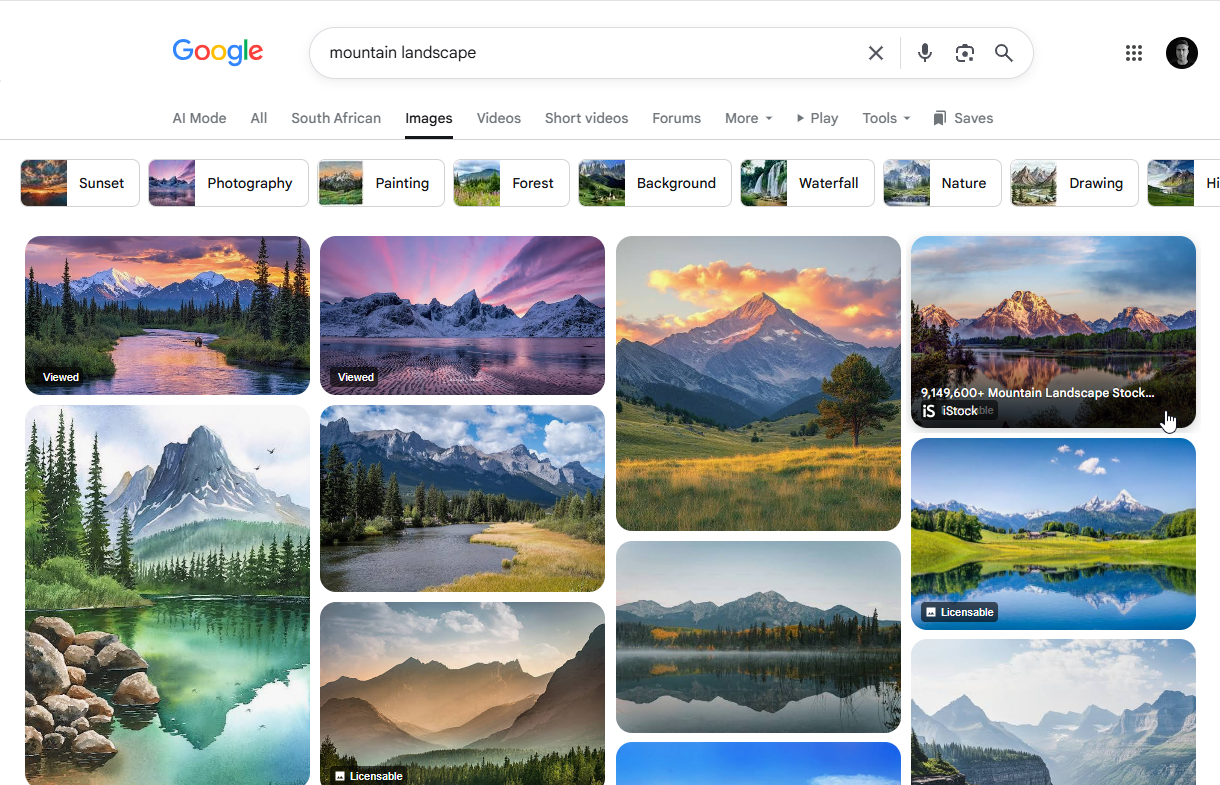
Google Images before: five columns of small thumbnails with titles under each one With Better Google Images: four columns of bigger thumbnails, without the titles 1 2 3

02 See the full picture, quickly

Larger preview images

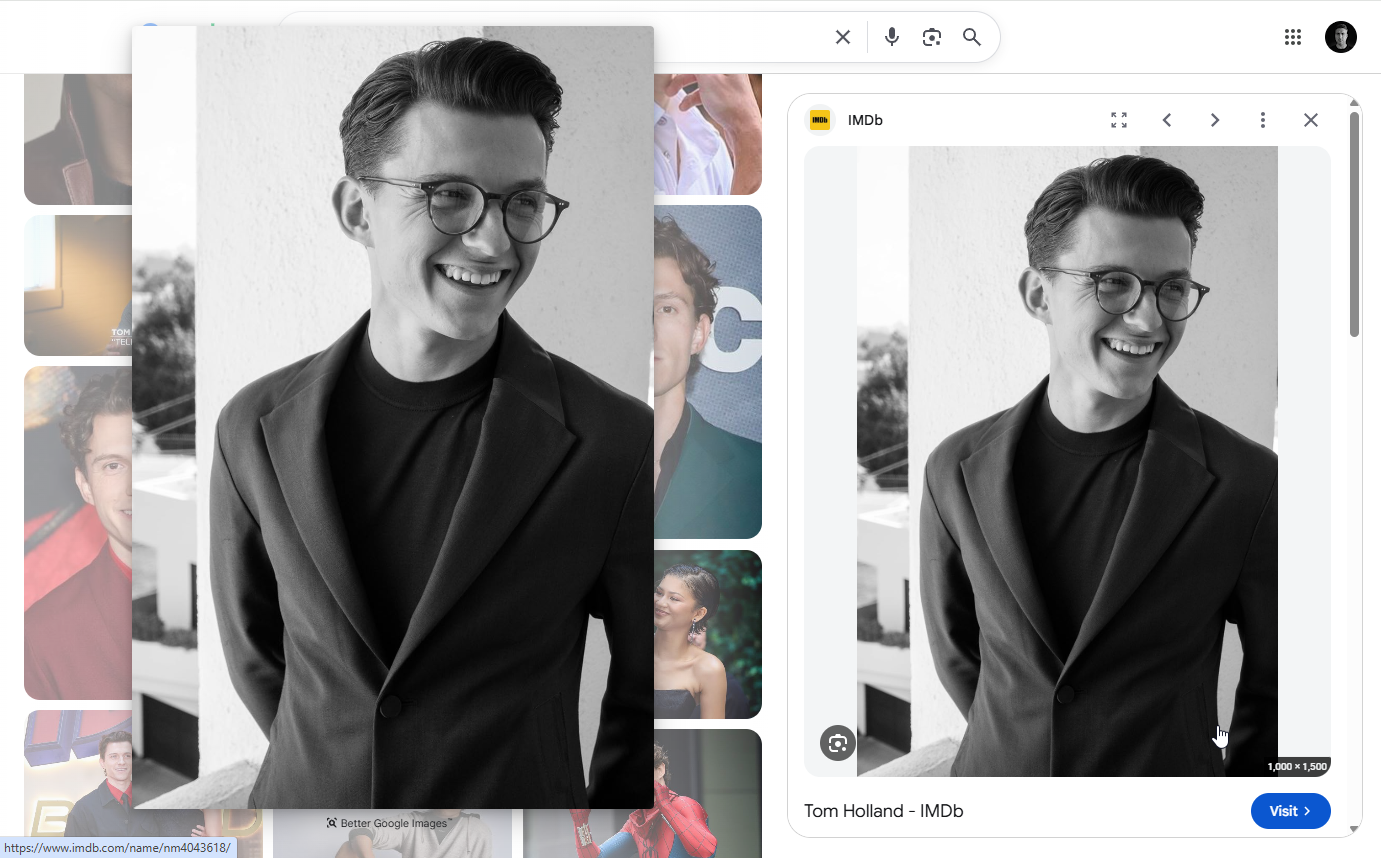
A result opens into a much larger preview. Hover for a full-size peek, and open the slideshow when you want the image even bigger.

  1. 1
    Hover for a full-size peek

    Hover the image for a quick full-size preview. Try it. You'll love it.

  2. 2
    We've made the preview image bigger

    The usual preview has shrunk over the years. We've made the image bigger again, so you see more of it and less wasted space.

  3. 3
    Click for the enlarged slideshow

    See the image even larger, in the full-screen slideshow.

With Better Google Images: a full-size hover peek and a bigger preview image in the side panel Google Images before: a small preview image in the side panel 1 2 3

03 Immerse yourself

Full-screen slideshow

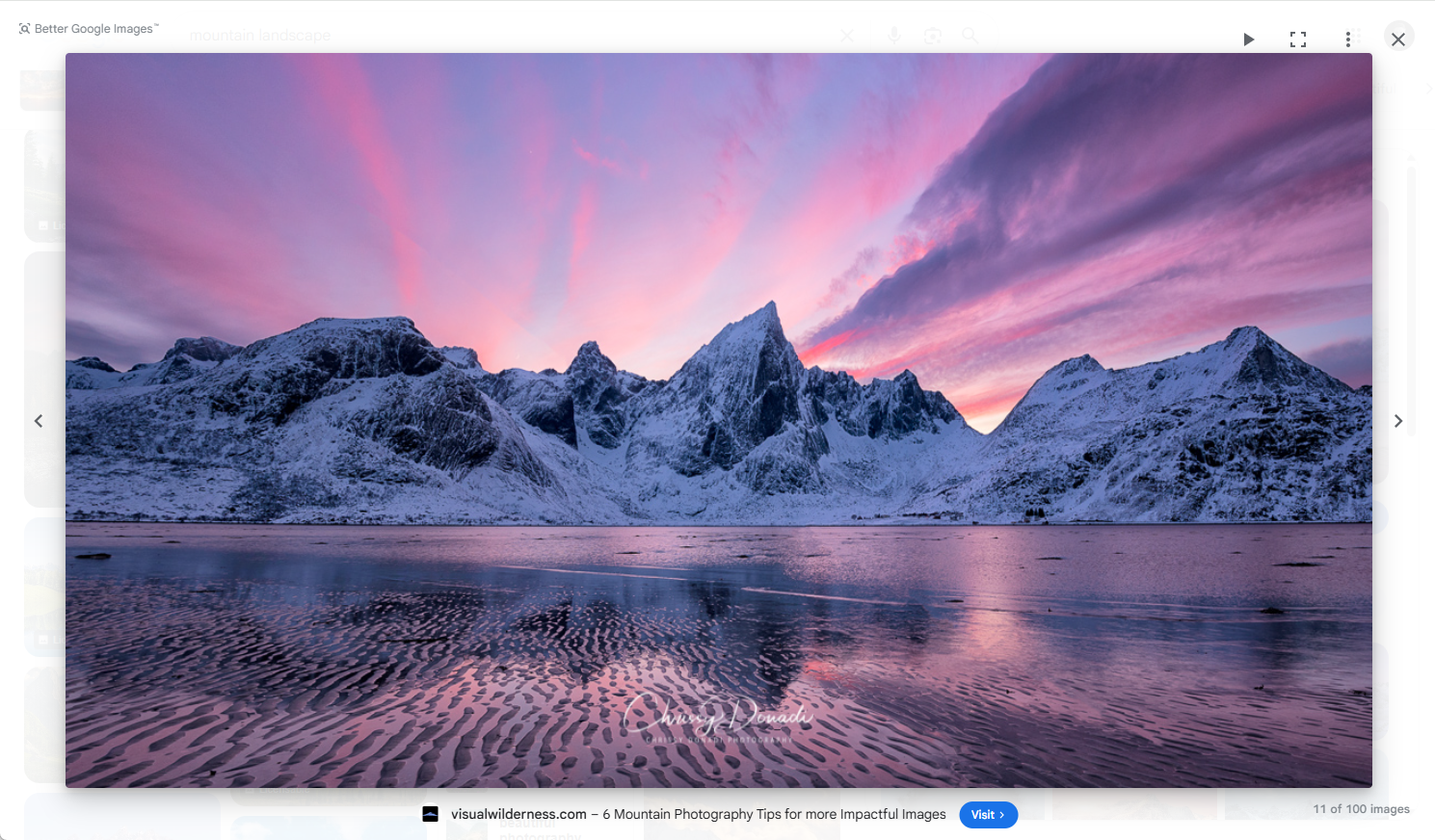
For another way to browse Google Images, open your images full screen. Play a slideshow, or step through your results one by one.

  1. 1
    A clear full-screen view

    See the images on their own, free of the usual page clutter.

  2. 2
    Play a slideshow

    Play through the images, with the settings you'd expect, like how long each one stays up.

  3. 3
    Step through your results

    Another way to browse Google Images: full screen, one image at a time.

Ready to see it for yourself?

Add Better Google Images to Chrome and start exploring Google Images the smarter way. Each feature can be turned on or off from the options panel.

Add to Chrome — it’s free